


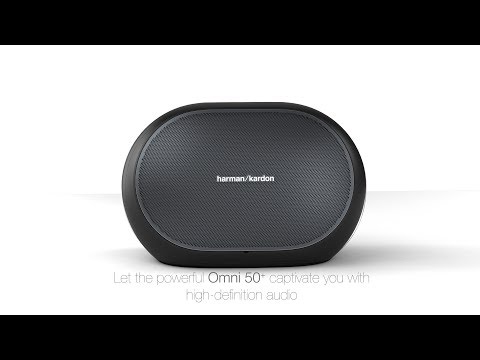
Omni 50+
Details https://tw.harmankardon.com/OMNI+50+PLUS.html?dwvar_OMNI%2050%20PLUS_color=Black-USA-Current無線 HD 室內/室外喇叭,含充電式電池
無線 HD 室內/室外喇叭,含充電式電池


您可在每一個房間中輕鬆地聆聽無線 HD 音樂,即使是在您家後院也不成問題。
不論是室內或室外,皆能完美地將您喜愛的音樂在整個家中串流播放,亦可串流至任何 Harman Kardon Omni+ 無線 HD 產品。在家中的任何房間聆聽不同的音樂,即使是在室外也不成問題。

使用 Spotify 應用程式作為遙控裝置,透過喇叭播放 Spotify 音樂
使用 Spotify 應用程式作為遙控裝置,透過 Spotify Connect,在您的住家室內外無線串流播放您喜愛的歌曲與播放清單。Spotify Connect 功能需要訂閱 Spotify Premium。

透過Chromecast built-in 將您喜愛的音樂推送至喇叭
利用Chromecast built-in,您可以將自己最喜歡的音樂、電台和 Podcasts 從行動裝置推送至喇叭。Chromecast built-in 可能需要訂閱。

內建充電式電池,可播放長達 5 個小時的音訊
您可以隨身攜帶 Omni 50+ 在家中四處走動,隨時隨地聆聽音樂。配備便利的提把,以及一個可支援長達 5 個小時播放時間的內建電池,

防潑水且不受天氣影響的室外喇叭
Omni 50+ 是一部防潑水且不受天氣影響的喇叭,室內或室外皆適用。設有 IPX5 等級防潑水設計,即使在大雨中,也能讓您繼續播放音樂。

24 位元/192kHz HD 音訊串流與數位和類比連接性
Harman Kardon Omni 50+ 支援 24 位元/192kHz HD 音訊串流。具有比 CD 更高的音訊品質,讓您享受超凡的聽覺體驗

使用免費的 Harman Kardon Controller 應用程式進行簡單的設定和控制
使用 Harman Kardon Controller 應用程式輕鬆地設定和控制您的系統。利用對 Apple 裝置上 WAC 的額外支援,以及逐步式的應用程式內指南,您可以快速啟動串流音樂。

透過藍牙或 3.5 公釐輸入端串流所有的音樂
透過藍牙或 3.5 公釐輸入端,將任何裝置連接至您的 Omni 50+,同時可自動將您的音樂無線串流至家中任何其他 Harman Kardon Omni+ 喇叭。

雙頻 WiFi 連接和 802.11ac 網路支援
支援最新的 802.11AC 無線家庭網路技術和雙頻(2.4GHz 和 5GHz)Wi-Fi 連接,可提供更快速、有力和更穩定的無線連接

HK Omni 50+ 可讓您輕鬆地在家中隨時隨地設定無線 HD 音樂系統,不論是室內或室外。這是一款不受天氣影響的喇叭,配備了充電式電池,增加可存取如 Spotify Connect 和Chromecast built-in 等串流服務的功能,所以您可在家中任何地方享受您最喜愛的音樂,不論是室內或室外皆不成問題。自由隨性的無線音樂讓您隨時隨地都能享受美妙的音樂。


一般規格
尺寸圖
- Omni 50+ 無線 HD 室外喇叭
- 快速入門指南
- 電源
- 地區電源線
- 安全和保固說明書

Omni Series
\nNote: This action will erase all network settings and Bluetooth data from the device. You will be required to connect your device to the network again after this action is done.
\n\n
Omni 10, Omni 20, Omni 10+, Omni 20+, Omni Bar
\n- Locate the reset button on the back panel of the product
- Press and hold down the reset button for more than 5 seconds
- The speaker will be factory reset and go into it's Wi-Fi set up mode
\n
Omni 50+
\n- Locate the reset button on the back panel of the product
- Press and hold down the reset button for more than 5 seconds
- The speaker will be factory reset and go into it's Wi-Fi set up mode
If the reset button is not functioning, you can trigger the reset by doing the following...
\n\n
- Press & hold the ‘Source’, ‘Vol+’, ‘Vol-‘ buttons at the same time
- The Omni 50+ will turn off, indicating it has been factory reset
\n
","Answer__c":"
Omni Series
\nNote: This action will erase all network settings and Bluetooth data from the device. You will be required to connect your device to the network again after this action is done.
\n\n
Omni 10, Omni 20, Omni 10+, Omni 20+, Omni Bar
\n- Locate the reset button on the back panel of the product
- Press and hold down the reset button for more than 5 seconds
- The speaker will be factory reset and go into it's Wi-Fi set up mode
\n
Omni 50+
\n- Locate the reset button on the back panel of the product
- Press and hold down the reset button for more than 5 seconds
- The speaker will be factory reset and go into it's Wi-Fi set up mode
If the reset button is not functioning, you can trigger the reset by doing the following...
\n\n
- Press & hold the ‘Source’, ‘Vol+’, ‘Vol-‘ buttons at the same time
- The Omni 50+ will turn off, indicating it has been factory reset
\n
","ArticleType":"How_Tos__kav"},{"attributes":{"type":"Knowledge__kav","url":"/services/data/v45.0/sobjects/Knowledge__kav/ka25d000000XmGlAAK"},"Title":"How do I fix occasional audio dropouts when playing music to my Omni+ and Omni?","Id":"ka25d000000XmGlAAK","ArticleNumber":"000029717","Question__c":"How do I fix occasional audio dropouts when playing music to my Omni+ and Omni?","Process__c":"We recommend starting playback on the Omni+ speaker first, and then linking the 1st generation Omni speakers. Omni+ is more powerful and can provide more stability when restreaming to other speakers.","Answer__c":"We recommend starting playback on the Omni+ speaker first, and then linking the 1st generation Omni speakers. Omni+ is more powerful and can provide more stability when restreaming to other speakers.","ArticleType":"How_Tos__kav"},{"attributes":{"type":"Knowledge__kav","url":"/services/data/v45.0/sobjects/Knowledge__kav/ka25d000000XlyJAAS"},"Title":"How does it work?","Id":"ka25d000000XlyJAAS","ArticleNumber":"000032456","Question__c":"How does it work?","Process__c":"Each speaker, adaptor and phone/tablet connects to your home Wi-Fi network, just like any other Wi-Fi produce you own. You can then stream any music from your phone/tablet to any Omni speaker or Adapt over your home network","Answer__c":"Each speaker, adaptor and phone/tablet connects to your home Wi-Fi network, just like any other Wi-Fi produce you own. You can then stream any music from your phone/tablet to any Omni speaker or Adapt over your home network","ArticleType":"How_Tos__kav"},{"attributes":{"type":"Knowledge__kav","url":"/services/data/v45.0/sobjects/Knowledge__kav/ka25d000000XmRCAA0"},"Title":"How long will it take to charge my OMNI 50+ speaker?","Id":"ka25d000000XmRCAA0","ArticleNumber":"000023832","Question__c":"How long will it take to charge my OMNI 50+ speaker?","Process__c":"If your OMNI 50+ is completely drained, it will take 3,5 to 4 hours to fully charge.\nWe advise to charge the Omni 50+ when it starts to blink red.","Answer__c":"If your OMNI 50+ is completely drained, it will take 3,5 to 4 hours to fully charge.\nWe advise to charge the Omni 50+ when it starts to blink red.","ArticleType":"How_Tos__kav"},{"attributes":{"type":"Knowledge__kav","url":"/services/data/v45.0/sobjects/Knowledge__kav/ka25d000000XmPDAA0"},"Title":"How many Chromecast built-in devices, can I connect through the multi-room mode?","Id":"ka25d000000XmPDAA0","ArticleNumber":"000025171","Question__c":"How many Chromecast built-in devices, can I connect through the multi-room mode?","Process__c":"The amount of Chromecast speakers you can stream music to depends on the bandwidth of your local wireless network. Theoretically, an unlimited amount of devices can be connected to stream the same song.","Answer__c":"The amount of Chromecast speakers you can stream music to depends on the bandwidth of your local wireless network. Theoretically, an unlimited amount of devices can be connected to stream the same song.","ArticleType":"How_Tos__kav"},{"attributes":{"type":"Knowledge__kav","url":"/services/data/v45.0/sobjects/Knowledge__kav/ka25d000000XmGgAAK"},"Title":"I can no longer play music to other speakers after setting up a new one.","Id":"ka25d000000XmGgAAK","ArticleNumber":"000029752","Question__c":"I can no longer play music on my other speakers, when setting up a new speaker using Ethernet connection.","Process__c":"If you are having problems playing music after setting up a new speaker (no matter what connection is used, Ethernet, Wi-Fi), please restart the Harman Kardon Controller app after the speaker setup is complete.","Answer__c":"If you are having problems playing music after setting up a new speaker (no matter what connection is used, Ethernet, Wi-Fi), please restart the Harman Kardon Controller app after the speaker setup is complete.","ArticleType":"How_Tos__kav"},{"attributes":{"type":"Knowledge__kav","url":"/services/data/v45.0/sobjects/Knowledge__kav/ka25d000000XmTLAA0"},"Title":"I cannot setup my speaker to a hidden SSID Wi-Fi network using Android.","Id":"ka25d000000XmTLAA0","ArticleNumber":"000022510","Question__c":"I cannot setup my speaker to a hidden SSID Wi-Fi network using Android.","Process__c":"It is not possible to setup a speaker to a hidden SSID Wi-Fi network. Please make it visible to install your OMNI+ speakers.","Answer__c":"It is not possible to setup a speaker to a hidden SSID Wi-Fi network. Please make it visible to install your OMNI+ speakers.","ArticleType":"How_Tos__kav"},{"attributes":{"type":"Knowledge__kav","url":"/services/data/v45.0/sobjects/Knowledge__kav/ka25d000000XmDYAA0"},"Title":"I cannot use Bluetooth or AUX IN when pairing my OMNI+ speaker to the WiFi network.","Id":"ka25d000000XmDYAA0","ArticleNumber":"000031171","Question__c":"I cannot use Bluetooth or AUX IN when pairing my OMNI+ speaker to the WiFi network.","Process__c":"It is not possible to use the speaker while installing it to your WiFi network.\nOnce you have successfully connected to the WiFi network, you can use Bluetooth and AUX again.","Answer__c":"It is not possible to use the speaker while installing it to your WiFi network.\nOnce you have successfully connected to the WiFi network, you can use Bluetooth and AUX again.","ArticleType":"How_Tos__kav"},{"attributes":{"type":"Knowledge__kav","url":"/services/data/v45.0/sobjects/Knowledge__kav/ka25d000000XmJyAAK"},"Title":"I have a dual-band router, and the HK Controller app cannot find my speakers when they are connected with different bands(2.4G or 5G).","Id":"ka25d000000XmJyAAK","ArticleNumber":"000028039","Question__c":"I have a dual-band router, and the HK Controller app cannot find my speakers when they are connected with different bands(2.4G or 5G).","Process__c":"Please make sure that your smart-device that is using the HK Controller app and OMNI speaker(s), are connected to the same band (2.4G or 5G) when using a Dual-band router.","Answer__c":"Please make sure that your smart-device that is using the HK Controller app and OMNI speaker(s), are connected to the same band (2.4G or 5G) when using a Dual-band router.","ArticleType":"How_Tos__kav"},{"attributes":{"type":"Knowledge__kav","url":"/services/data/v45.0/sobjects/Knowledge__kav/ka25d000000XmGuAAK"},"Title":"I have a pair of OMNI+ speakers set up as a stereo pair. When I am streaming music to them, the music takes a while before playing.","Id":"ka25d000000XmGuAAK","ArticleNumber":"000029630","Question__c":"I have a pair of OMNI+ speakers set up as a stereo pair. When I am streaming music to them, the music takes a while before playing.","Process__c":"Make sure that both speakers are using the same network technology, either Ethernet or WiFi. \nMixing them will increase music loading time.","Answer__c":"Make sure that both speakers are using the same network technology, either Ethernet or WiFi. \nMixing them will increase music loading time.","ArticleType":"How_Tos__kav"},{"attributes":{"type":"Knowledge__kav","url":"/services/data/v45.0/sobjects/Knowledge__kav/ka25d000000XmZpAAK"},"Title":"JBL & HK WiFi Speakers: Speaker connected through Device Utility app, but not found in Google Home app","Id":"ka25d000000XmZpAAK","ArticleNumber":"000018240","Question__c":"I have connected my speaker using the Device Utility app, but the Google Home app cannot find the speaker. What should I do?","Process__c":"Close and restart the Google Home app, or restart your phone. Start the Google Home app again, and the speaker should now appear.
","Answer__c":"Close and restart the Google Home app, or restart your phone. Start the Google Home app again, and the speaker should now appear.
","ArticleType":"How_Tos__kav"},{"attributes":{"type":"Knowledge__kav","url":"/services/data/v45.0/sobjects/Knowledge__kav/ka25d000000XmGoAAK"},"Title":"I have large delay between my OMNI+ speakers. How can I fix this?","Id":"ka25d000000XmGoAAK","ArticleNumber":"000029678","Question__c":"I have large delay between my OMNI+ speakers. How can I fix this?","Process__c":"Please make sure that if you use 5GHz or 2.4GHz Wi-Fi, all your speakers are connected to either 2.4GHz or all are connected to 5GHz Wi-Fi to have the best performance.","Answer__c":"Please make sure that if you use 5GHz or 2.4GHz Wi-Fi, all your speakers are connected to either 2.4GHz or all are connected to 5GHz Wi-Fi to have the best performance.","ArticleType":"How_Tos__kav"},{"attributes":{"type":"Knowledge__kav","url":"/services/data/v45.0/sobjects/Knowledge__kav/ka25d000000XmTCAA0"},"Title":"I'm having trouble setting up my speaker to a Wi-Fi network with WEP encryption.","Id":"ka25d000000XmTCAA0","ArticleNumber":"000022614","Question__c":"I'm having trouble setting up my speaker to a Wi-Fi network with WEP encryption.","Process__c":"We do not recommend using WEP encryption method, as this can leave your Wi-Fi vulnerable to outside threats. Our OMNI+ does not support this encryption type, we are supporting WPA and up.","Answer__c":"We do not recommend using WEP encryption method, as this can leave your Wi-Fi vulnerable to outside threats. Our OMNI+ does not support this encryption type, we are supporting WPA and up.","ArticleType":"How_Tos__kav"},{"attributes":{"type":"Knowledge__kav","url":"/services/data/v45.0/sobjects/Knowledge__kav/ka25d000000XmO6AAK"},"Title":"I'm having trouble with setting up a Wi-Fi extender network with my Omni 10+, Omni 20+ or Omni 50+","Id":"ka25d000000XmO6AAK","ArticleNumber":"000025885","Question__c":"I'm having trouble with setting up a Wi-Fi extender network with my Omni 10+, Omni 20+ or Omni 50+","Process__c":"Make sure you disable AP/Client isolation on your Access Point / Extender and that Multicast forwarding is not disabled between the W-Fi networks. However, we cannot guarantee than streaming will work flawless as Extender networks are tricky and can cause many issues. Always use a 5GHz Wi-Fi network extender for best results.","Answer__c":"Make sure you disable AP/Client isolation on your Access Point / Extender and that Multicast forwarding is not disabled between the W-Fi networks. However, we cannot guarantee than streaming will work flawless as Extender networks are tricky and can cause many issues. Always use a 5GHz Wi-Fi network extender for best results.","ArticleType":"How_Tos__kav"},{"attributes":{"type":"Knowledge__kav","url":"/services/data/v45.0/sobjects/Knowledge__kav/ka25d000000XmR2AAK"},"Title":"May the OMNI 50+ speaker be damaged by rain or snow, since it is splashproof?","Id":"ka25d000000XmR2AAK","ArticleNumber":"000023984","Question__c":"May the OMNI 50+ speaker be damaged by rain or snow, since it is splashproof?","Process__c":"The speaker is IPX5 certified, it can withstand direct splashes from any direction for up to 3 minutes. Although a little snow or rain won't hurt it, we do not recommend keeping the speaker outside during rain and/or snow. Also be aware of extreme hot or cold temperatures, they may be damaging.","Answer__c":"The speaker is IPX5 certified, it can withstand direct splashes from any direction for up to 3 minutes. Although a little snow or rain won't hurt it, we do not recommend keeping the speaker outside during rain and/or snow. Also be aware of extreme hot or cold temperatures, they may be damaging.","ArticleType":"How_Tos__kav"},{"attributes":{"type":"Knowledge__kav","url":"/services/data/v45.0/sobjects/Knowledge__kav/ka25d000000XmYiAAK"},"Title":"My OMNI 50+ does not react when I am trying to pair it via Bluetooth?","Id":"ka25d000000XmYiAAK","ArticleNumber":"000018962","Question__c":"My OMNI 50+ does not react when I am trying to pair it via Bluetooth?","Process__c":"One explanation can be that your OMNI 50+ is part of a 5.1 system with your Omni Bar, which will make the surround OMNI 50+ left and right rear speakers act as "secondary", and Bluetooth connection is not possible to secondary speakers.\nTo use the OMNI 50+ as a portable speaker again, simply perform a reset of the speaker by pressing the reset button for 5 seconds. \nPlease note that after resetting your OMNI 50+, it is no longer part of the 5.1 wireless system.","Answer__c":"One explanation can be that your OMNI 50+ is part of a 5.1 system with your Omni Bar, which will make the surround OMNI 50+ left and right rear speakers act as "secondary", and Bluetooth connection is not possible to secondary speakers.\nTo use the OMNI 50+ as a portable speaker again, simply perform a reset of the speaker by pressing the reset button for 5 seconds. \nPlease note that after resetting your OMNI 50+, it is no longer part of the 5.1 wireless system.","ArticleType":"How_Tos__kav"},{"attributes":{"type":"Knowledge__kav","url":"/services/data/v45.0/sobjects/Knowledge__kav/ka25d000000XmGqAAK"},"Title":"My OMNI+ speaker will not connect to my Wi-Fi.","Id":"ka25d000000XmGqAAK","ArticleNumber":"000029662","Question__c":"My OMNI+ speaker will not connect to my Wi-Fi, is it defective?","Process__c":"If your Wi-Fi network name has special characters, such as (, `, \\, ', ", or ), then please change the name of your Wi-Fi network, as these characters are not supported. After changing the name, you can go ahead and setup the speaker to your Wi-Fi network.","Answer__c":"If your Wi-Fi network name has special characters, such as (, `, \\, ', ", or ), then please change the name of your Wi-Fi network, as these characters are not supported. After changing the name, you can go ahead and setup the speaker to your Wi-Fi network.","ArticleType":"How_Tos__kav"},{"attributes":{"type":"Knowledge__kav","url":"/services/data/v45.0/sobjects/Knowledge__kav/ka25d000000XmGvAAK"},"Title":"One of my OMNI+ speakers keeps disconnecting from my Wi-Fi network","Id":"ka25d000000XmGvAAK","ArticleNumber":"000029622","Question__c":"One of my OMNI+ speakers keeps disconnecting from my Wi-Fi network","Process__c":"- Try to disconnect some devices from your Wi-Fi network. Some routers may have weak performance, which can cause issues and poor connection to all devices in your network.\n- If your router supports 5Ghz ( 802.11N or AC ) and you have devices that are capable of using 5 GHz Wi-Fi then switch to that specific network for best performance.\n- If you have a lot of ( Legacy / older than 5 years ) devices on 2.4GHz network, try limiting them to max. 6 connected simultaneously","Answer__c":"- Try to disconnect some devices from your Wi-Fi network. Some routers may have weak performance, which can cause issues and poor connection to all devices in your network.\n- If your router supports 5Ghz ( 802.11N or AC ) and you have devices that are capable of using 5 GHz Wi-Fi then switch to that specific network for best performance.\n- If you have a lot of ( Legacy / older than 5 years ) devices on 2.4GHz network, try limiting them to max. 6 connected simultaneously","ArticleType":"How_Tos__kav"},{"attributes":{"type":"Knowledge__kav","url":"/services/data/v45.0/sobjects/Knowledge__kav/ka25d000000XmImAAK"},"Title":"The setup process fails with a device running Android 7.0 or higher for my OMNI+ speaker","Id":"ka25d000000XmImAAK","ArticleNumber":"000028813","Question__c":"The setup process fails with a device running Android 7.0 or higher for my OMNI+ speaker, how can I make it connect?","Process__c":"If you experience a problem with setup using an Android 7.0 or higher device, please perform the following steps: First, force stop the HK Controller app from running in background. Second, go to your phone or tablet Wi-Fi settings, find the Omni speaker setup Wi-Fi network, and select “Forget Network”.Third, reopen the HK Controller app and begin the setup process again. After performing these steps, you will be able to complete the setup process for your speakers.","Answer__c":"If you experience a problem with setup using an Android 7.0 or higher device, please perform the following steps: First, force stop the HK Controller app from running in background. Second, go to your phone or tablet Wi-Fi settings, find the Omni speaker setup Wi-Fi network, and select “Forget Network”.Third, reopen the HK Controller app and begin the setup process again. After performing these steps, you will be able to complete the setup process for your speakers.","ArticleType":"How_Tos__kav"},{"attributes":{"type":"Knowledge__kav","url":"/services/data/v45.0/sobjects/Knowledge__kav/ka25d000000Xm7fAAC"},"Title":"What is the rated power of the Omni 50+ speaker with and without AC power?","Id":"ka25d000000Xm7fAAC","ArticleNumber":"000034631","Question__c":"What is the rated power of the Omni 50+ speaker with and without AC power?","Process__c":"The Omni 50+ rated power with AC power connected is 4 X 25 Watt.\nWhen using battery only, the rated power is 4 X 15 Watt.","Answer__c":"The Omni 50+ rated power with AC power connected is 4 X 25 Watt.\nWhen using battery only, the rated power is 4 X 15 Watt.","ArticleType":"How_Tos__kav"},{"attributes":{"type":"Knowledge__kav","url":"/services/data/v45.0/sobjects/Knowledge__kav/ka25d000000XlyuAAC"},"Title":"What router port numbers does the Harman Kardon Wireless HD Audio System use?","Id":"ka25d000000XlyuAAC","ArticleNumber":"000023997","Question__c":"What router port numbers does the Harman Kardon Wireless HD Audio System use?","Process__c":"The Harman Kardon Wireless HD Audio System uses UDP ports 6060 and 6080.","Answer__c":"The Harman Kardon Wireless HD Audio System uses UDP ports 6060 and 6080.","ArticleType":"How_Tos__kav"},{"attributes":{"type":"Knowledge__kav","url":"/services/data/v45.0/sobjects/Knowledge__kav/ka25d000000XmRIAA0"},"Title":"What router should i get, to have the best performance for my OMNI+ system?","Id":"ka25d000000XmRIAA0","ArticleNumber":"000023781","Question__c":"What router should i get, to have the best performance for my OMNI+ system?","Process__c":"To have the best possible performance for OMNI+ system we advise to have a dual-band router with a powerful chipset and ram for best Wi-Fi performance.\nThis will not only help our products to perform better and more stable, but your other devices at home will have more power and fewer interruptions.\n\nPlease also be sure that your home Wi-Fi router has Multicast enabled, as our Omni+ system requires this feature enabled in order to work (same goes for Chromecast devices).\n\nAlways connect our Omni+ system to 5 GHz Wi-Fi whenever possible to limit the risk of devices being slow or interrupted on 2.4GHz Wi-Fi.","Answer__c":"To have the best possible performance for OMNI+ system we advise to have a dual-band router with a powerful chipset and ram for best Wi-Fi performance.\nThis will not only help our products to perform better and more stable, but your other devices at home will have more power and fewer interruptions.\n\nPlease also be sure that your home Wi-Fi router has Multicast enabled, as our Omni+ system requires this feature enabled in order to work (same goes for Chromecast devices).\n\nAlways connect our Omni+ system to 5 GHz Wi-Fi whenever possible to limit the risk of devices being slow or interrupted on 2.4GHz Wi-Fi.","ArticleType":"How_Tos__kav"},{"attributes":{"type":"Knowledge__kav","url":"/services/data/v45.0/sobjects/Knowledge__kav/ka25d000000XmZoAAK"},"Title":"JBL & HK WiFi speakers: Device needs to be activated before setup","Id":"ka25d000000XmZoAAK","ArticleNumber":"000018255","Question__c":"When trying to set up my speaker with the Google Home app, I get a message that says “Device needs to be activated before setup”. How do I proceed?","Process__c":"If you see this message, you must download the Device Utility app from the Google Play Store. Follow the instructions in the app to activate your speaker, and then return to the Google Home app to complete the setup.
","Answer__c":"If you see this message, you must download the Device Utility app from the Google Play Store. Follow the instructions in the app to activate your speaker, and then return to the Google Home app to complete the setup.
","ArticleType":"How_Tos__kav"},{"attributes":{"type":"Knowledge__kav","url":"/services/data/v45.0/sobjects/Knowledge__kav/ka25d000000XmZmAAK"},"Title":"JBL & HK WiFi Speakers: WiFi network does not appear in list","Id":"ka25d000000XmZmAAK","ArticleNumber":"000018279","Question__c":"When using the Device Utility app to set up my speaker, my Wi-Fi network is not appearing in the list. How can I connect to my Wi-Fi network?","Process__c":"If the network does not appear, you can manually type in the network name (SSID) and password to connect.
","Answer__c":"If the network does not appear, you can manually type in the network name (SSID) and password to connect.
","ArticleType":"How_Tos__kav"},{"attributes":{"type":"Knowledge__kav","url":"/services/data/v45.0/sobjects/Knowledge__kav/ka25d000000Xm4bAAC"},"Title":"Where can I get a wall bracket for my Omni 10+, Omni 20+ speakers?","Id":"ka25d000000Xm4bAAC","ArticleNumber":"000023877","Question__c":"Where can I get a wall bracket for my Omni 10+, Omni 20+ speakers?","Process__c":"There are threaded inserts for mounting screws in the bottom of the Omni 10+ and Omni 20+. Mounting accessories are not available via Harman Kardon. \nFor Omni 10+ there are two mounting screw holes which are 3mm in diameter and 67mm apart.\nFor Omni 20+ there are two mounting screw holes which are 3mm in diameter and 110,5mm apart.","Answer__c":"There are threaded inserts for mounting screws in the bottom of the Omni 10+ and Omni 20+. Mounting accessories are not available via Harman Kardon. \nFor Omni 10+ there are two mounting screw holes which are 3mm in diameter and 67mm apart.\nFor Omni 20+ there are two mounting screw holes which are 3mm in diameter and 110,5mm apart.","ArticleType":"How_Tos__kav"},{"attributes":{"type":"Knowledge__kav","url":"/services/data/v45.0/sobjects/Knowledge__kav/ka25d000000Xm49AAC"},"Title":"Will OMNI work with my existing equipment?","Id":"ka25d000000Xm49AAC","ArticleNumber":"000033488","Question__c":"Will OMNI work with my existing equipment?","Process__c":"Yes. Just connect an Adapt to your existing Hi-Fi equipment or active speaker via the 3.5mm line out port to transform any speaker into a wireless speaker in the Harman Kardon Wireless HD Audio System","Answer__c":"Yes. Just connect an Adapt to your existing Hi-Fi equipment or active speaker via the 3.5mm line out port to transform any speaker into a wireless speaker in the Harman Kardon Wireless HD Audio System","ArticleType":"How_Tos__kav"},{"attributes":{"type":"Knowledge__kav","url":"/services/data/v45.0/sobjects/Knowledge__kav/ka25d000000XmSqAAK"},"Title":"Will my 1st generation OMNI speaker work with 2nd generation OMNI+ speakers?","Id":"ka25d000000XmSqAAK","ArticleNumber":"000022791","Question__c":"Will my 1st generation OMNI speaker work with 2nd generation OMNI+ speakers?","Process__c":"Yes, they will work together. You can link rooms containing 1st generation Omni speakers with rooms containing 2nd generation Omni speakers and listen to the same music across all of them. Since the 2nd generation has a more powerful processor, we recommend connecting external sources like AUX or Bluetooth to the 2nd generation speakers rather than the 1st generation.","Answer__c":"Yes, they will work together. You can link rooms containing 1st generation Omni speakers with rooms containing 2nd generation Omni speakers and listen to the same music across all of them. Since the 2nd generation has a more powerful processor, we recommend connecting external sources like AUX or Bluetooth to the 2nd generation speakers rather than the 1st generation.","ArticleType":"How_Tos__kav"}]}


